Change Image Background is a simple online image editing tool that allows you to remove the existing background from an image and replace it with a new background. Whether you want a plain color, gradient, transparent background, or a custom image, you can create a professional-looking photo in just a few steps.
You do not need advanced photo editing skills or complicated software. With an easy-to-use online background changer, anyone can edit an image directly from a web browser.
What Is Change Image Background?
Change Image Background is an online image editing feature designed to help users modify the background of their photos. The tool can be useful for profile pictures, product images, ID photos, social media posts, websites, online stores, and many other purposes.
A typical background changing process involves:
- Uploading an image.
- Removing or replacing the existing background.
- Selecting a new background.
- Adjusting the image if necessary.
- Downloading the finished image.
This makes it easier to create clean and attractive images without using professional desktop editing software.
Why Change an Image Background?
The background of a photograph can have a significant effect on how the image looks. Sometimes the original background is distracting, messy, or simply does not match the purpose of the image.
Changing the background can help you:
- Remove unwanted objects or scenery.
- Create a clean product image.
- Make a professional profile photo.
- Prepare an image for an ID or application.
- Add a solid-color background.
- Create a transparent image.
- Use a custom background.
- Improve the visual appearance of a photograph.
- Prepare images for websites and social media.
For example, a product seller may want to remove a room background and place the product on a clean white background. Similarly, someone creating a profile picture may prefer a simple professional background.
How to Change Image Background Online
Changing an image background online is usually a straightforward process.
Step 1: Upload Your Image
First, select the image you want to edit. Choose a clear photo in a supported image format.
For the best results, use an image where the main subject is clearly visible and separated from the background.
Step 2: Remove the Existing Background
After uploading the image, the background can be removed using the background removal feature.
The system identifies the main subject and separates it from the surrounding background. Depending on the image, hair, clothing, objects, and other fine details may require additional processing.
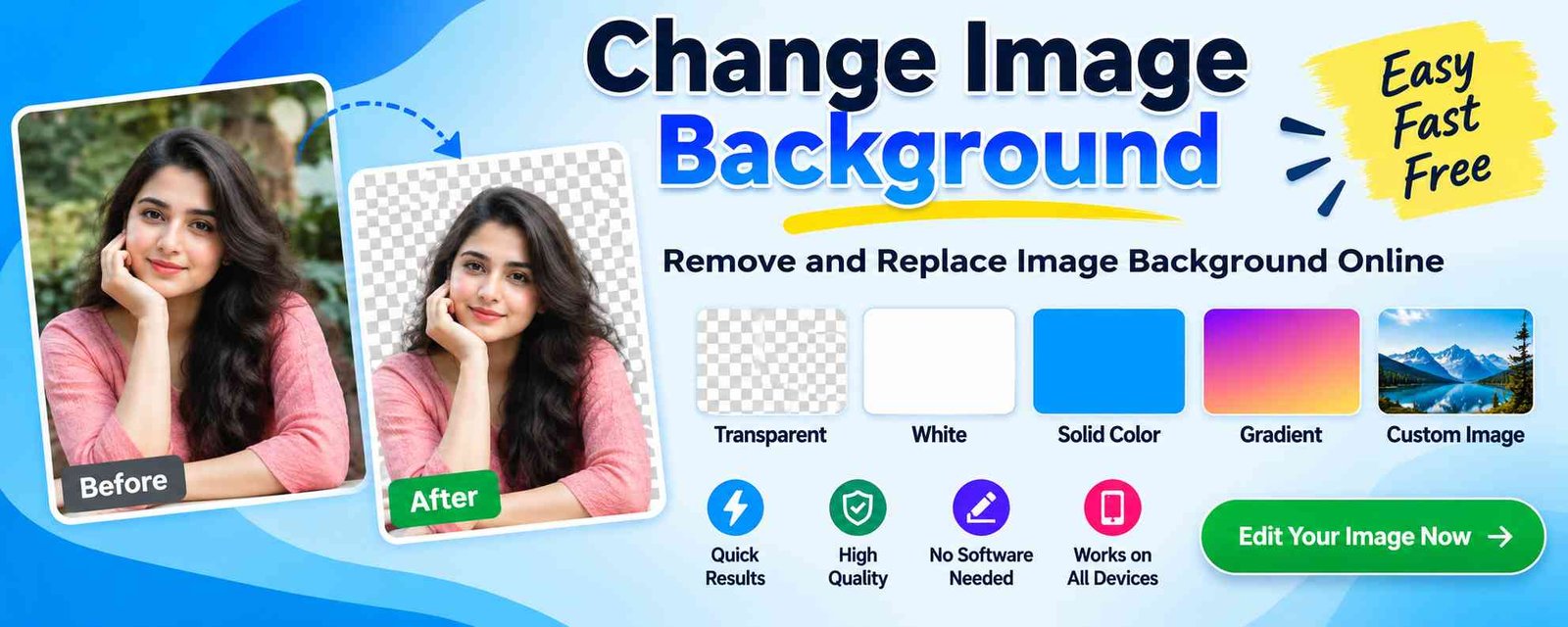
Step 3: Select a New Background
Once the original background has been removed, you can select a new background.
Common options include:
- White background
- Black background
- Solid colors
- Gradient backgrounds
- Transparent background
- Custom image backgrounds
Choose the option that best matches your requirements.
Step 4: Adjust the Image
After selecting the background, check the edges of the subject and make sure the image looks natural.
You may also adjust the position, size, or appearance of the subject depending on the features available in the image editor.
Step 5: Download the Result
When you are satisfied with the result, download the edited image in the available output format.
Your new image is now ready to use.
Change Image Background to White
A white background is one of the most commonly used background options.
White backgrounds are especially useful for:
- Product photography
- Online shopping listings
- Professional profile images
- Documents and applications
- Catalogs
- Business websites
A clean white background can make the main subject stand out and give the image a simple, professional appearance.
Change Image Background to a Solid Color
You can also replace the original background with a solid color.
Popular choices include:
- White
- Black
- Blue
- Red
- Green
- Gray
- Light colors
- Brand colors
Solid backgrounds are useful when you want a consistent visual style across multiple images.
Change Image Background to a Gradient
Gradient backgrounds can create a modern and attractive visual effect.
Instead of using a single color, a gradient gradually transitions between two or more colors. This can make portraits, promotional images, and social media graphics look more visually interesting.
Use a Custom Image as Background
Another useful option is replacing the original background with your own image.
For example, you could place:
- A portrait in a studio environment.
- A product in a professional setting.
- A person in a travel location.
- A subject in a creative landscape.
- A product in a promotional scene.
When using a custom background, try to choose an image with suitable lighting and perspective so that the final result looks natural.
Transparent Background
Sometimes you may not want another background at all. In that situation, a transparent background can be useful.
A transparent background is particularly useful for:
- Logos
- Product images
- Website graphics
- Marketing materials
- Stickers
- Presentations
- Graphic design projects
Transparent images are commonly saved in formats that support transparency, such as PNG.
Best Images for Background Removal
The quality of background removal can depend on the original photograph.
For better results, consider the following tips:
Use a Clear Image
A high-quality image usually provides more visible details around the subject.
Keep the Subject Clearly Visible
Try to use a photo where the main subject is not hidden behind other objects.
Avoid Extremely Complex Backgrounds
Photos with very complicated backgrounds can make subject separation more difficult.
Use Good Lighting
Proper lighting can make the edges of a person or object easier to identify.
Avoid Similar Colors
If the subject and background have very similar colors, separating them may be more difficult.
Change Background for Product Photos
Changing image backgrounds is particularly useful for e-commerce and online sellers.
A product image with a clean background can make the product easier to see. Many online stores use simple backgrounds so customers can focus on the product.
For example, you can remove a bedroom, table, or outdoor background from a product photograph and replace it with a clean white or neutral background.
Change Background for Profile Pictures
A profile picture may need a clean and professional appearance.
You can remove a distracting background and replace it with a simple color or professional-looking background.
- Social media profiles
- Business profiles
- Professional websites
- Online portfolios
- Team directories
- Personal branding
Change Background for ID and Application Photos
Some applications require photographs with a specific background color or appearance.
A background changer can help prepare an image for such purposes. However, users should always check the official requirements of the organization before submitting an edited photograph.
Different applications may have specific requirements for:
- Background color
- Image dimensions
- File format
- File size
- Photo quality
- Facial visibility
Change Image Background on Mobile
You do not necessarily need a desktop computer to change an image background.
If the tool supports mobile browsers, you can open it on a smartphone or tablet, upload an image, edit the background, and save the result.
Change Image Background Without Photoshop
Traditional image editing software can provide advanced features, but it may require installation, technical knowledge, and time.
An online background changer provides a simpler alternative for common background editing tasks.
You can use a browser-based tool for basic background replacement without learning complicated selection, masking, or layer-editing techniques.
Benefits of an Online Image Background Changer
Easy to Use
A simple interface allows beginners to edit images without professional design experience.
No Complex Software
You can perform common background editing tasks directly through a web browser.
Fast Editing
Background replacement can be completed quickly, depending on the image and processing requirements.
Useful for Different Purposes
The same tool can be used for portraits, products, social media graphics, websites, and other projects.
Accessible from Different Devices
Browser-based tools can be convenient on computers, tablets, and supported mobile devices.
Who Can Use Change Image Background?
Students
Students can prepare images for presentations, projects, assignments, and creative work.
Job Seekers
Job seekers can create clean profile photos for professional profiles and resumes where appropriate.
Online Sellers
E-commerce sellers can create cleaner product photographs.
Content Creators
Content creators can prepare images for social media posts, thumbnails, websites, and promotional content.
Designers
Designers can quickly prepare image assets before using them in larger projects.
Small Businesses
Businesses can create consistent product and promotional images without requiring advanced editing software.
Tips for a Natural-Looking Background
Simply replacing a background does not always guarantee a realistic result. Consider these tips:
- Match the lighting between the subject and new background.
- Choose a background with a suitable perspective.
- Avoid backgrounds that are too bright or too dark compared with the subject.
- Keep the subject properly positioned.
- Check the edges carefully.
- Avoid excessive blur or artificial effects.
- Use a background that matches the purpose of the image.
Frequently Asked Questions
What is Change Image Background?
Change Image Background is an image editing feature that allows you to remove an existing photo background and replace it with a different background.
Can I change the background to white?
Yes. A white background is one of the most common choices for product images, profile photos, and other professional uses.
Can I make the background transparent?
If the image editing tool supports transparency, you can remove the background and save the subject with a transparent background.
Can I use my own image as a new background?
If custom backgrounds are supported, you can upload your own image and use it as the replacement background.
Do I need Photoshop?
No. For basic background replacement, an online image editing tool can provide a simpler alternative to professional editing software.
Can I change the background on my phone?
Yes, if the online tool is compatible with your mobile browser, you can upload and edit images from a smartphone or tablet.
Which image format should I use?
The supported formats depend on the particular tool. Common image formats include JPG, JPEG, PNG, and WebP.
Will every background be removed perfectly?
Results can vary depending on the image. Photos with clear subjects, good lighting, and strong contrast between the subject and background generally make background removal easier.
Conclusion
Change Image Background is a convenient way to transform the appearance of a photograph. By removing an unwanted background and replacing it with a solid color, gradient, transparent background, or custom image, you can create cleaner and more professional-looking images.
Whether you are editing a product photo, preparing a profile picture, creating social media content, or working on a design project, an online background changer can make the process much easier.
Choose a clear image, remove the unwanted background, select a suitable replacement, check the final result, and download your edited image when it is ready.