Resize & Crop Image Free
Upload an image, resize or crop it with live preview, then download the result.
Or drag on the preview image to select crop area
What is Resize & Crop Image?
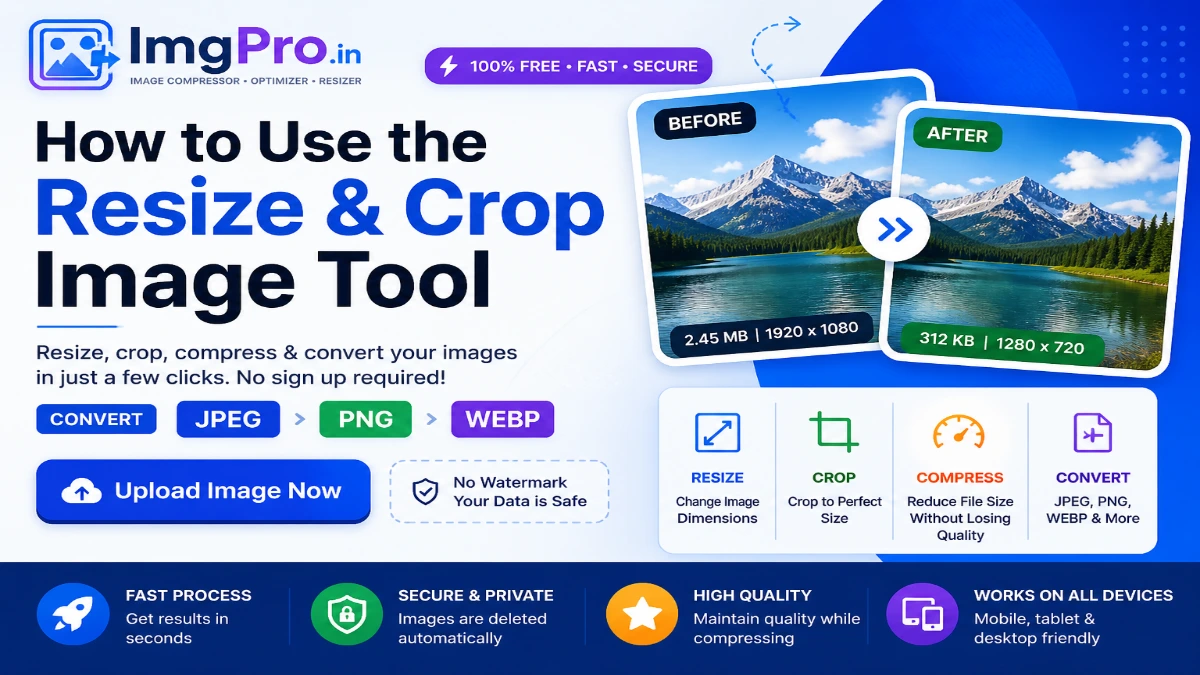
- Upload Your Image: Click on the upload button and select your image from your device. Supported formats include JPG, PNG, and WEBP.
- Crop the Image: Select the area you want to keep by dragging the crop box. Maintain aspect ratio if needed.
- Resize the Image: Enter custom width and height or choose preset sizes. Keep aspect ratio to avoid distortion.
- Preview Changes: Check the preview before finalizing your edits.
- Download the Image: Click download to save your optimized image instantly.
- Accurate Resizing: Adjust images to exact dimensions without distortion
- Smart Cropping: Easily remove unwanted areas with precision
- Fast Processing: Get results instantly without delays
- Secure Handling: Your images are processed safely resize & crop image
- Multiple Formats Support: Works with JPG, PNG, and WEBP
- Mobile Friendly: Use the tool on any device
- Website: optimized width (e.g., 800–1200px)
- Social media: platform-specific sizes
- Documents: exact required dimensions
- JPG: Best for photos
- PNG: Best for transparent images
- WEBP: Best for web optimization
- Creating passport size photos
- Uploading images to government portals
- Preparing images for websites or blogs
- Social media content creation
- Reducing image size for email attachments
Resizing and cropping images are two essential editing techniques used to adjust an image’s size and composition. While resizing changes the overall dimensions (width and height), cropping removes unwanted parts of an image to focus on a specific area.
These two functions are commonly used together. For example, you might crop an image to remove unnecessary background and then resize it to meet specific requirements such as website uploads, social media dimensions, or document submission guidelines.
With an online resize and crop image tool, you can perform both actions quickly without installing any software. Everything works directly in your browser, making the process simple, fast, and accessible for everyone.
Why Resize and Crop Images?
1. Improve Website Performance
Large images can slow down your website. Resizing reduces file dimensions and size, helping pages load faster and improving user experience.
2. Focus on Important Content
Cropping helps remove unnecessary elements from an image so the main subject stands out clearly.
3. Meet Platform Requirements
Different platforms have different image size requirements such as passport photos, job application forms, and social media posts. Resizing and cropping ensure your images meet these exact specifications and Resize & Crop Image.
4. Save Storage Space
Optimized images take up less storage, which is useful for both personal devices and web servers.
5. Better Visual Presentation
A properly cropped and resized image looks cleaner, more professional, and visually appealing.
How to Use the Resize & Crop Image Tool
Key Features of Our Resize & Crop Image
Best Practices for Resizing and Cropping Images
1. Maintain Aspect Ratio
Always keep the aspect ratio locked when resizing to prevent stretched or distorted images.
2. Crop Before Resizing
Crop the image first to remove unnecessary parts, then resize it for better results.
3. Use Proper Dimensions
4. Avoid Excessive Editing
Over-editing can reduce image quality. Keep adjustments balanced.
5. Choose the Right Format
Common Use Cases
Frequently Asked Questions (FAQ)
1. What is the difference between resizing and cropping?
Resizing changes the dimensions of the entire image, while cropping removes unwanted parts of the image.
2. Will cropping reduce image file size?
Yes, cropping removes portions of the image, which can reduce file size.
3. Can I resize images without losing quality?
Yes, if you maintain proper dimensions and avoid excessive compression.
4. Is this tool free to use?
Yes, the resize and crop tool is completely free and works online.
5. Can I use this tool on mobile?
Yes, the tool is fully responsive and works on smartphones and tablets.
6. Which format should I choose after editing?
WEBP is recommended for web use, while JPG and PNG are suitable for general purposes.
7. Is my image safe?
Yes, your images are processed securely and are not stored permanently.
Conclusion
Resizing and cropping images are essential tasks for anyone working with digital content. Whether you are preparing images for a website, social media, or official documents, having a reliable online tool makes the process simple and efficient.
With this resize and crop image tool, you can quickly adjust your images to the perfect size and composition without compromising quality. It saves time, improves performance, and ensures your images meet all necessary requirements.
Start using the tool today and make your images cleaner, sharper, and perfectly optimized.